
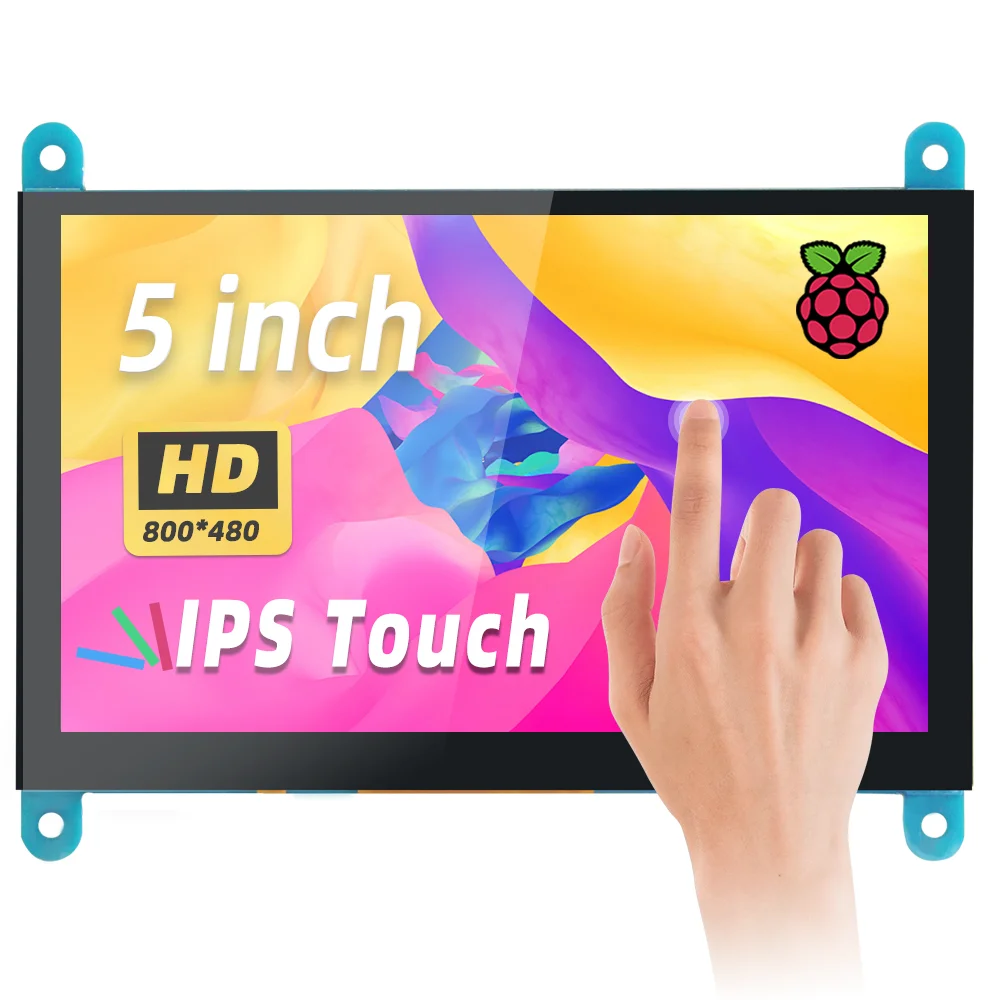
5 Inch IPS LCD Capacitive Touch Screen 800*480 HDMI Display Monitor for Raspberry Pi 5 4B 3B
You will be redirected to AliExpress to complete your purchase
Specifications
- Brand Name
- NONE
- Origin
- Mainland China
- Display Mode
- 1000
- High-concerned chemical
- None
- Resolution
- 800x480
Product Description
Product Description
1. 5" standard display, 800x480 resolution,maximum HDMI resolution 1920X1080 is supported
2. Capacitive touch screen, support 5 point touch maximum
3. Built-in OSD menu adjustment function (adjustable Contrast/ Brightness/Saturation, etc.)
4. It is compatible with mainstream mini PC such as Raspberry Pi, BB Black, Banana Pi
5. It can also be used as a general-purpose HDMI display, connecting computers, TV boxes, Microsoft Xbox360, SONY PS4, Nintendo Switch and so on
6. Used as a Raspberry Pi display that supports Raspbian, Ubuntu, Kodi, Win10 IOT, single-touch, free drive
7. Work as a PC monitor, support Win7, Win8, Win10 system 5 point touch (XP and older version system: single-point touch), free drive
8. Support HDMI audio output
9. CE, RoHS certification
Parameters
Size: 5.0 (inch)
SKU: MPI5001
Resolution: 800 × 480 (dots)
Touch: 5 point capacitive touch
Audio output: support
Active Area: 108.00*64.80 (mm)
Dimensions: 121.11*95.24 (mm)
Power Dissipation: 0.30A*5V
How to use with Raspbian/Ubuntu Mate/Win10 IoT Core System
Step 1, Install Raspbian official image
Download the latest image from the official download.
Install the system according to the official tutorial steps.
Step 2, modify the “config.txt”
After the programming of Step1 is completed, open the config.txt file of TF card root directory and
add the following code at the end of the file, save and eject Micro SD Card safely:
hdmi_force_edid_audio=1
max_usb_current=1
hdmi_force_hotplug=1
config_hdmi_boost=7
hdmi_group=2
hdmi_mode=87
hdmi_drive=2
hdmi_cvt 800 480 60 6 0 0 0
Step 3, Drive the 5inch HDMI Display-B with the Raspberry Pi
Insert the TF Card to Raspberry Pi, connect the Raspberry Pi and LCD by HDMI cable; connect USB cable to one of the four USB ports of Raspberry Pi,
and connect the other end of the USB cable to the USB port of the LCD; then supply power to Raspberry Pi;
after that if the display and touch both are OK, it means drive successfully (please use the full 2A for power supply).
How to use as PC monitor
Connect the computer HDMI output signal to the LCD HDMI interface by using the HDMI cable
Connect the LCD's USB Touch interface (Either of the two MicroUSB) to the USB port of the device
If there are several monitors, please unplug other monitor connectors first, and use LCD as the only monitor for testing.
Pros & Cons
Pros
- Responsive 5-point capacitive touch screen for intuitive interaction
- Built-in OSD menu for customizable display settings
- Broad compatibility with popular Raspberry Pi devices
- Supports higher HDMI input resolutions for expanded use cases
Cons
- Only supports HDMI connection with no alternative input options
- No mounting hardware or cables included for easy setup
- Native 800x480 resolution is relatively low for detailed graphic work
- No formal warranty details provided beyond basic shop customer service
Common Questions
What materials are used in this 5-inch LCD touch screen?
There are no high-concerned chemicals used in this product, and it is constructed with durable IPS display components.
What size is this LCD touch screen?
This is a 5-inch standard display with a native 800x480 resolution.
What single-board computers is this touch screen compatible with?
It is specifically designed for use with Raspberry Pi 5, 4B, and 3B models.
What key functions does this display offer?
It supports up to 5-point capacitive touch, built-in OSD menu adjustments for brightness/contrast/saturation, and up to 1920x1080 HDMI input resolution.
Where is this LCD touch screen shipped from?
This product originates from Mainland China.
Product information last updated on January 30, 2026