
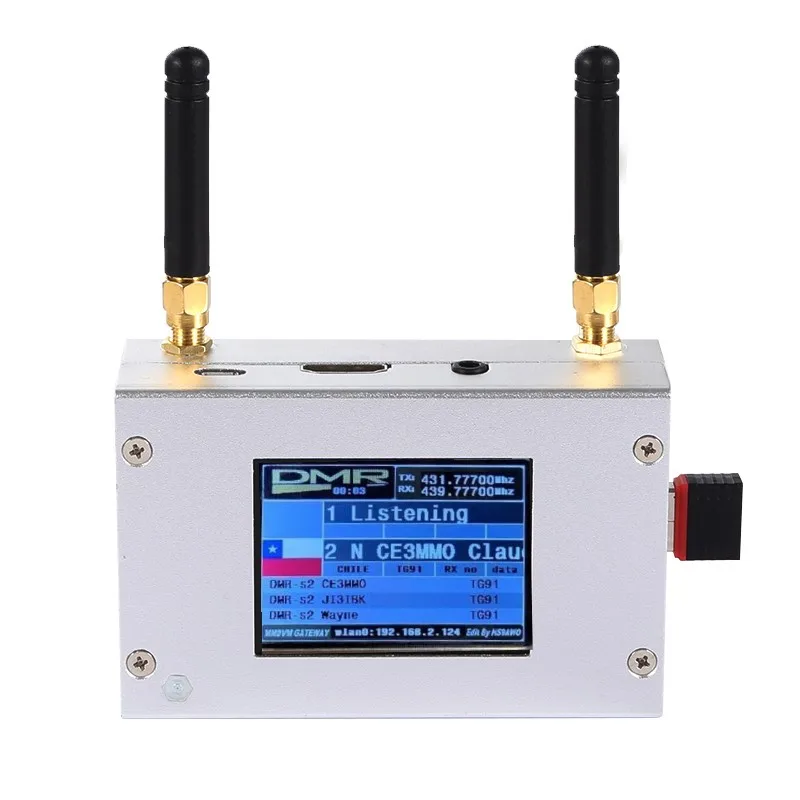
Duplex MMDVM Hotspot mit Aluminiumlegierungsgehäuse, Farbdisplay, unterstützt C4FM/DMR/DSTAR P25 mit Raspberry Pi 1B+
You will be redirected to AliExpress to complete your purchase
Specifications
- Markenname
- AISANRAY
- Artikeltyp
- Adapter
- Hochbetriebenes Chemikalienunternehmen
- Keine
- Ursprung
- CN (Herkunft)
- Material
- Metal
- Modellnummer
- Duplex MMDVM
Product Description
Duplex MMDVM Hotspot w/ Aluminum Alloy Shell Color Display Screen Supporting For C4FM/DMR/DSTAR P25
Description:
It is a MMDVM hotspot digital networking box. Display firmware has been updated. Imported temperature-compensated crystal oscillators in DMR format with zero frequency offset and duplex dual time slots are used. It supports C4FM, DMR, DSTAR P25 and other digital formats. It solves inconsistency in digital intercom mechanism, enabling multi-digital system intercommunication. Using mobile phone hotspot network or WiFi network to connect to the Internet, it meets your dream of connecting with HAMs around the world.
Package Included:
1 x Set of MMDVM Hotspot
WiFi Settings when MMDVM is Started for the First Time:
I. Connect to Automatic AP Hotspot:
1. The hotspot is powered on.
2. Wait for Pi-Star to start. It usually takes about a minute (it will take longer if you use Pi0W). If your hotspot has a screen display, you can watch Pi-Star start up until the login prompt appears.
3. Wait 2 minutes for the Auto AP function to activate.
4. Check the hotspot named "Pi-Star-Setup" on your computer or mobile phone, and connect. WiFi hotspot: Pi-Star-Setup; password: 12345678
II. Log in to the Pi-Star Page:
1. After the connection is successful, users for Windows visit: //pi-star. Users for macOS, iOS or other (tablet for Windows 10) visit: //pi‐star.local. Mobile device access: 192.168.50.1
2. The first time you start Pi-Star, you will see a page that displays "No Mode Defined...". Click Configuration, or wait 10 seconds to be redirected to the configuration page
3. Enter the configuration page and enter the account password to log in to the Pi-Star page. Default username: pi-star; password: 12345678
III. Add Personal WiFi Connection:
1. After entering the configuration page, scroll to the "wireless configuration section" and click Configure WiFi
2. Select your country code, click Scan for Netwroks (10 secs) to start searching for WiFi, and wait 10 seconds.
3. If there is no WiFi you want to add in the search results, you can add it manually.
4. When the hotspot is restarted, it will be connected to the set personal WiFi. Visit Pi-Star in the browser for other configurations.
Pros & Cons
Pros
- Robustes Aluminiumgehäuse für langfristige Nutzung
- Farbdisplay zur einfachen Überwachung des Geräts
- Unterstützt mehrere gängige digitale Funkprotokolle
- Komplett mit Raspberry Pi 1B+ geliefert, sofort einsatzbereit
Cons
- Nur für lizenzierte Amateurfunker geeignet, keine private Nutzung ohne entsprechende Genehmigung
- Keine genaue Angabe zur Größe und Gewicht des Geräts
- Keine alternativen Gehäusematerialien erhältlich
Common Questions
Aus welchem Material besteht das Gehäuse dieses Hotspots?
Das Gehäuse besteht aus hochwertiger Aluminiumlegierung.
Welche Größe und Ausstattung hat dieses Gerät?
Es verfügt über einen Farbdisplaybildschirm und wird zusammen mit einem Raspberry Pi 1B+ geliefert.
Für welche Anwendungsbereiche ist dieser Hotspot kompatibel?
Er ist nur für Amateurfunker geeignet und unterstützt digitale Funkprotokolle für private Funknetze.
Wofür kann dieser MMDVM Hotspot verwendet werden?
Er dient zum Aufbau von digitalen Amateurfunk-Netzen mit Unterstützung von C4FM, DMR, DSTAR und P25.
Wo wird dieser Hotspot geliefert?
Der Ursprung des Produkts ist China, es wird aus China versandt.
Product information last updated on November 30, 2025